Tutorial: Send an email
This tutorial shows you how to send a simple text email via the Email Service.
Prerequisites
- You must have a service access key that provides access to the Email Service. More specifically, your service access key’s scope must include the following permissions:
email-api:query:* email-api:mutation:*. If you followed the Getting Started chapter, you should already have a service access key with full access to all SBS APIs, including the Email Service. Otherwise, see Generate a service access key.
Send a test email
 desktop app as API client. As an alternative, you can use any other API client (such as cURL or Fiddler) and achieve the same result.
-
In Postman, click New, and then select GraphQL.
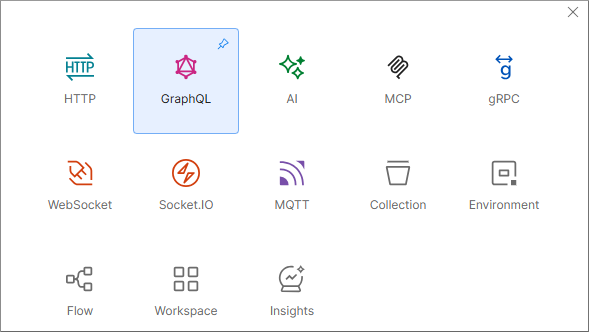
-
Enter the URL of the SBS endpoint that you want to call (in this example,
https://email-api.socrate.io/graphql).
-
On the Authorization tab, select API Key. Set the key name to
x-api-keyand the key value to the secret key generated previously.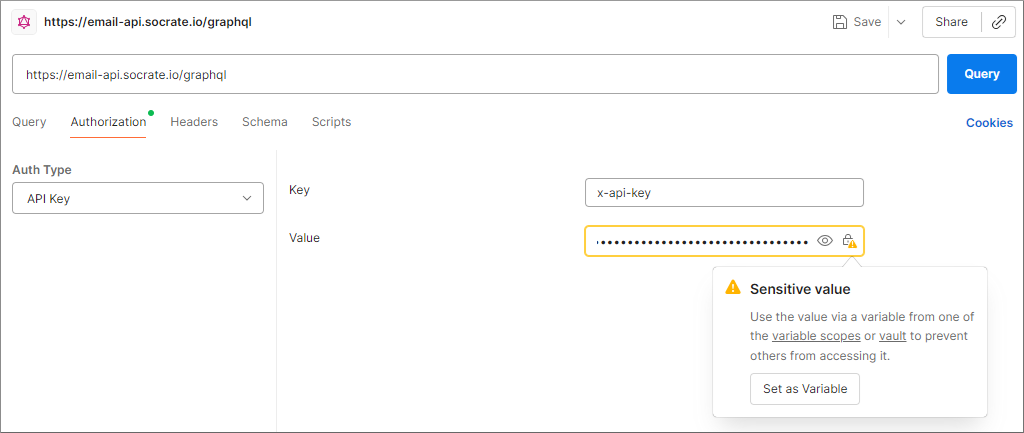
For security purposes, you will likely want to click Set as Variable and store the key value as a variable. In the screen capture below, the variable name is
{{SBS_ACCESS_KEY}}.
-
On the Query tab, click Use GraphQL Introspection. As a result, the GraphQL schema is loaded from the API.
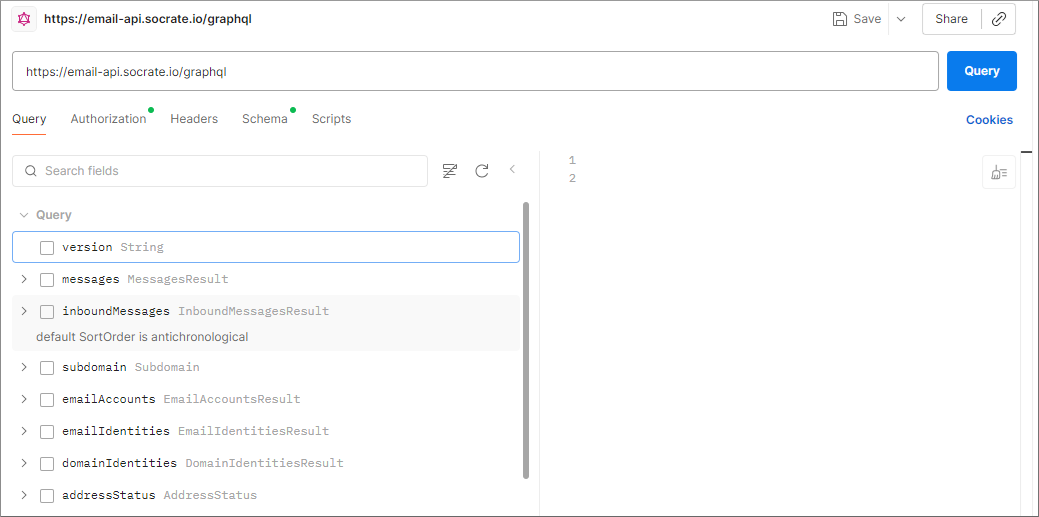
-
You can now select checkboxes to build your GraphQL queries and add variables. For this tutorial, you can enter the email-sending mutation and variables directly in the upper-right and lower-right text boxes, respectively. The code is included below, for convenience.
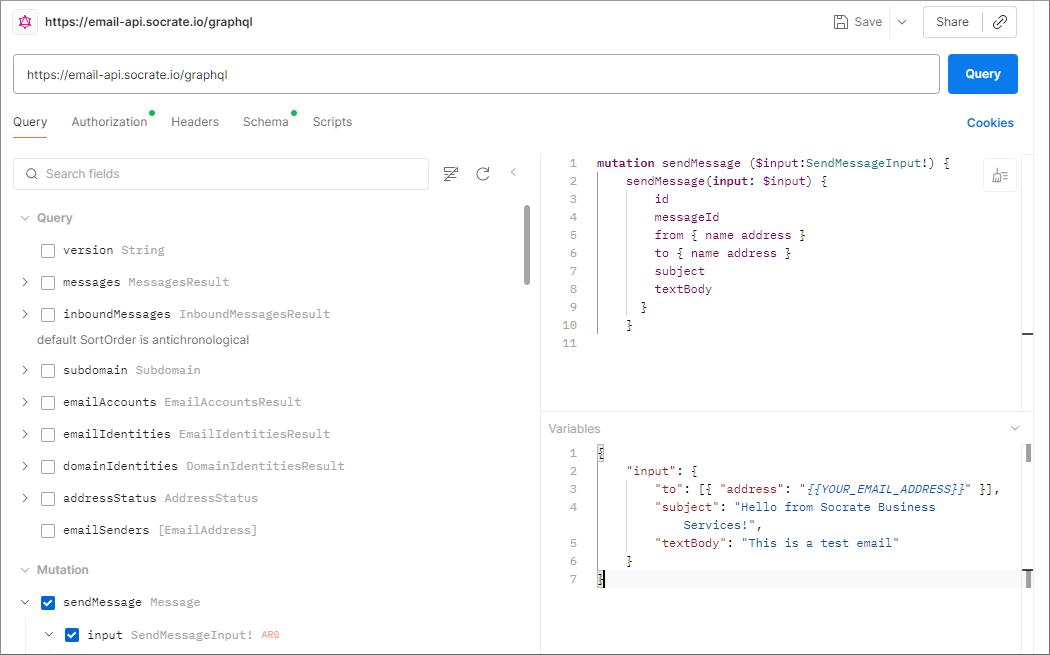
mutation sendMessage ($input:SendMessageInput!) { sendMessage( input: $input ) { id messageId from { name address } to { name address } subject textBody } }{ "input": { "to": [{ "address": "{{YOUR_EMAIL_ADDRESS}}" }], "subject": "Hello from Socrate Business Services!", "textBody": "This is a test email" } } -
Replace
{{YOUR_EMAIL_ADDRESS}}as required, and click Query to send the email. If the email was sent successfully, you are presented with a result similar to the one below: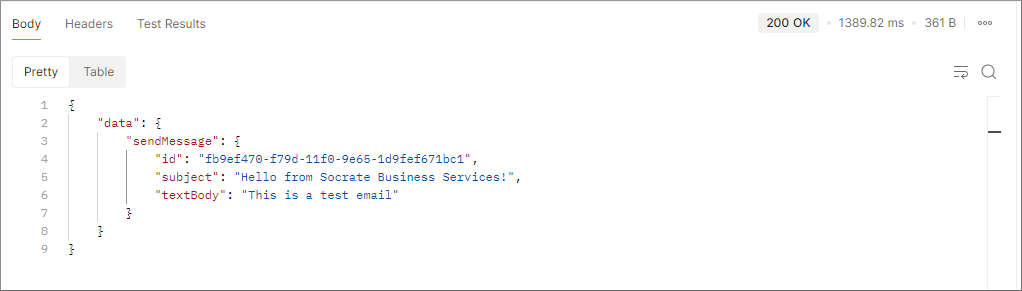
If an error occurred, the result displays an errors object that provides further details about the encountered problem.