Sign in to the SBS Portal
You can sign in to the portal at https://portal.socrate.io, using any of the following approaches:
- Sign in with Google - use this approach if you have a Google-managed email, like a business email managed by Google Workspace (formerly G Suite). By choosing Google as an identity provider, you will benefit from single sign-on (SSO) without the need to create and remember a new password.
- Sign in with Microsoft - use this approach if you have a Microsoft-managed email, like a business email managed through a Microsoft 365 subscription. By choosing Microsoft as an identity provider, you will benefit from single sign-on (SSO) without the need to create and remember a new password.
- Sign in with Socrate.io - use this approach if you prefer to create a new user account for use on Socrate.io specifically. By choosing Socrate.io as an identity provider, you will need to register with Socrate.io and create a new password using multi-factor authentication, which adheres to the highest security standards. Multi-factor authentication means that you will have to provide a second verification factor at each sign in, which is a one-time password (OTP) generated by a mobile authenticator app, such as Google Authenticator, Microsoft Authenticator or other similar authenticator apps.
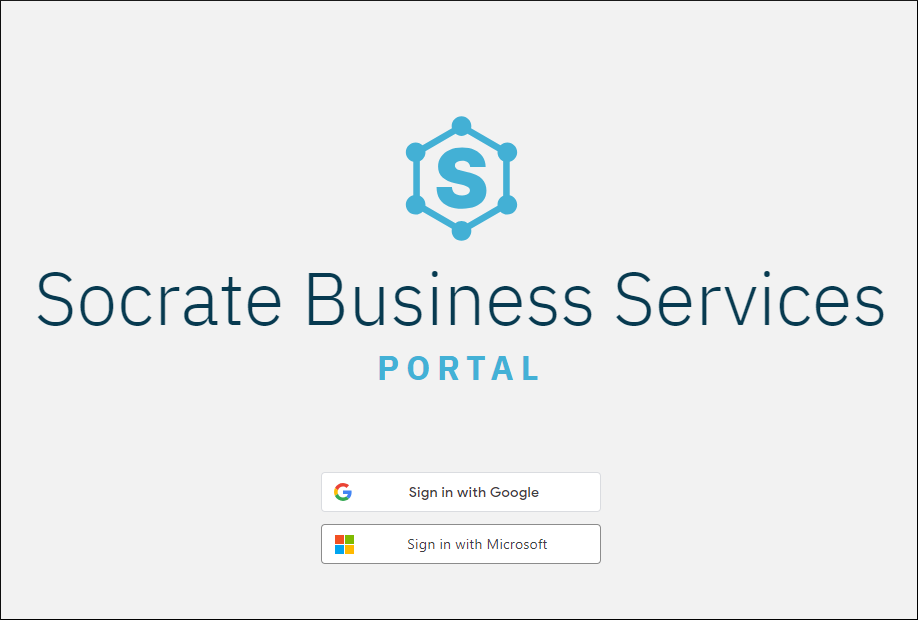
After signing in to the portal, you may be presented with the message: “No account membership has been granted to you. Please contact the account administrator.”
If you see this message, request access rights from your manager or the person responsible for maintaining SBS in your organization. For more information, see Invite portal users. After you have been granted access rights, refresh the page or sign in again. You can now view and select the account(s), the application(s), and the tenant(s) to which you have been granted access, as described in Switching accounts.
If you are a manager or supervisor entitled to administer portal user accounts for your organization, see Portal Users for instructions about adding portal users and setting their permissions.
Microsoft accounts
When you sign in with a Microsoft email address, Microsoft does not pass a verified email address to the SBS Portal, so the portal requires you to verify your address before you can continue.
Immediately after you sign in, and before you can select an account, application, or tenant, the portal displays an email verification dialog with the message “Your email verification is pending. Please verify your email to continue.”:
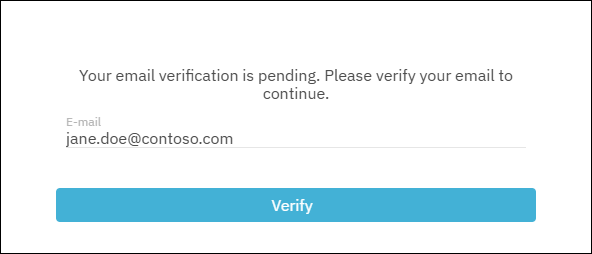
To verify your email address:
- Confirm that the E-mail field shows the correct address, then click Verify. The portal sends an email containing a verification code to that address.
- Enter the verification code in the dialog to complete verification.
If you log out before completing verification, the portal displays the dialog again the next time you sign in. Verifying your Microsoft email address is a one-time process and is valid for all SBS accounts that you are part of.