Account users
An SBS account may be managed by multiple users.
Whenever you create a new account, the identity with which you are signed in becomes the root user for the account. As an account’s root user, you can invite several other users to the account. These could be people in your organization that are entitled to view or create SBS data, including sensitive data such as service access keys.
When inviting other users to the SBS account, the root user determines the permissions that the new users will have. For example, you can invite users that will only be able to view and query existing data, without any rights to modify it. The permissions of non-root account users may be subsequently updated or their account removed completely.
Invite account users
You can invite other users (for example, people in your organization) to view or manage the current SBS account. This works as follows:
- First, you define the permissions of the new account user and send an invitation email.
- The invited user accepts the invitation from their inbox by clicking a link.
- The link redirects the user to the SBS Console, where the user can sign in (or sign up if they haven’t used the SBS Console before).
- After signing in or signing up, the invited user is able to view and work with the SBS Account where they have been invited.
To invite a user to the current SBS Account:
-
If necessary, switch to the account where you would like to add the user. Remember that the current SBS account name is displayed at all times in the top application bar.
-
Click Account Users in the navigation menu on the left-hand side.
-
Click Invite Account User. A dialog box pops up.
-
Enter the user’s email address.
-
Optionally, enter a text for the invitation message.
-
Under Scope, enter the extent of permissions (scope) that should be available to the newly created user. For example, to grant the user read-only rights to the SBS account, choose
account-api:query:*. For details, see Scope editor.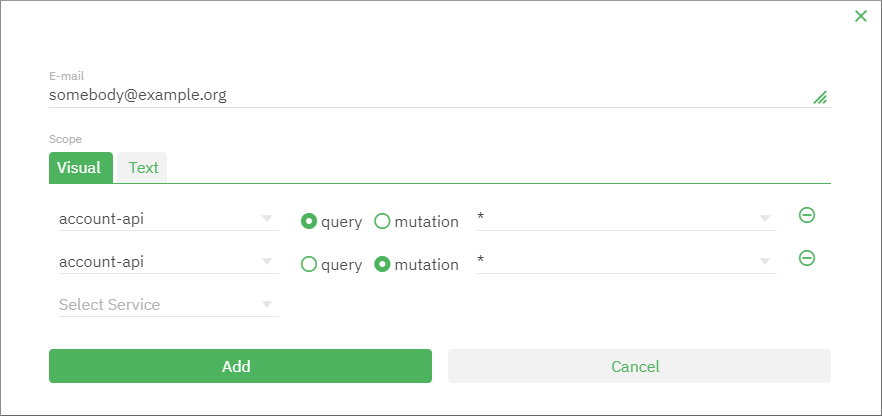
-
Click Send invitation.
The user’s invitation is now displayed in the list of accounts with an “Invitation pending” status. This status signifies that the user must first accept the invitation from their email inbox before they get access to the SBS account.
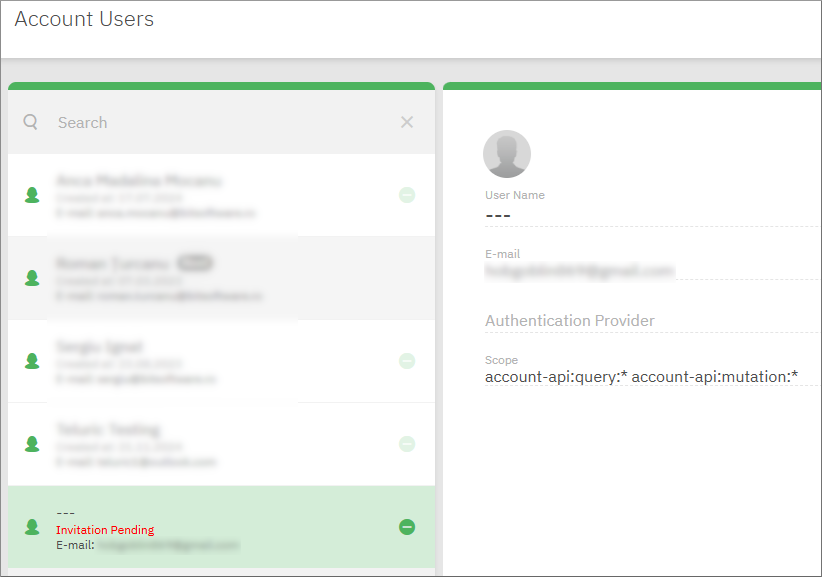
If necessary, you can remove pending invitations by clicking Remove  . If you do this, the user will no longer be able to fulfill the invitation sent by email and thus will not get access to the SBS account.
View account users
You can view the account users linked to a particular SBS account as follows:
- If you haven’t done that already, sign in to the SBS Console and switch to the account of interest.
- Click Account Users in the navigation menu on the left-hand side.
Update permissions
You can update the permissions (scope) of an existing account user as follows:
-
Switch to the account of interest.
-
Click Account Users in the navigation menu on the left-hand side.
-
Click the account user whose permissions you would like to change.
-
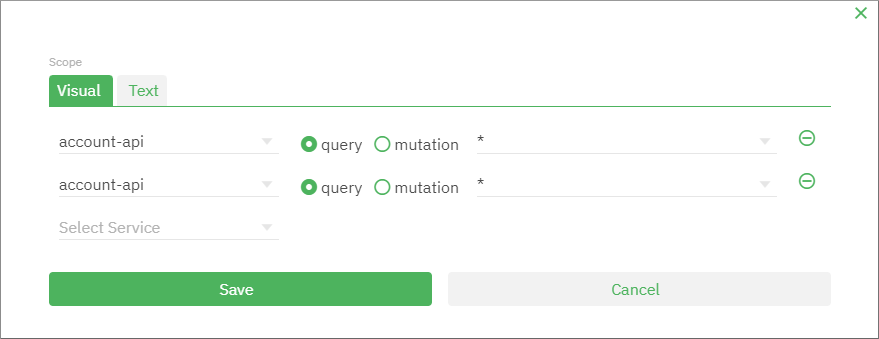
Click the Edit
 button next to Scope. A dialog box opens.
 -
In the Scope field, enter the extent of permissions (scope) that should be available to the newly created user. For details, see Scope editor. Note that, if you leave the scope empty, the user will be granted full access to the Account API (and implicitly to all the actions available in the SBS Console).
Notes
- A user may have access to multiple SBS accounts. Updating the account user’s permissions takes effect only for the account that you are currently working with (the one displayed in the application bar)
- The permissions of a root account user cannot be overwritten.
Remove account users
You can delete account users as follows:
- Sign in to the SBS Console.
- Switch to the account of interest.
- Click Account Users in the navigation menu on the left-hand side.
- Click Delete next to the account user you would like to delete, and confirm your action when prompted.
Notes
- A user may have access to multiple SBS accounts. Removing the user takes effect only for the account that you are currently working with (the one displayed in the application bar).
- The root account user cannot be removed.