Localization UI
From the Localization page of the SBS portal, you can perform the following actions:
- Create, update, and delete labels that you intend to localize. Labels are structural elements of any application that needs localization. Examples of labels include buttons, window/page titles, dialog box names, and so on.
- Create, update, and delete locales into which you intend to localize your application. Locales are combinations of language and country (also known as “cultures”). Examples of locales are
en-US,ro-RO,de-DE, etc. - Add translations for each label in the desired locale.
Access
You can access the Localization page of the portal as follows:
- Sign in to the SBS Portal. During the sign-in process, you will be prompted to select the account, app, and tenant where you are entitled to sign in.
- Click Localization in the left hand-side menu.
To interact with the Locations service, you can use either the Web UI or a GraphQL interface. You can switch at any time between the two interfaces by clicking the switch displayed at the top of the page:

Manage locales
To localize any application, first you need to create the locales (also known as cultures, or language-country combinations) into which you intend to localize the application. For example, if your application was originally developed in English and you want to localize into Romanian, you should create the ro-RO locale.
To create a locale:
-
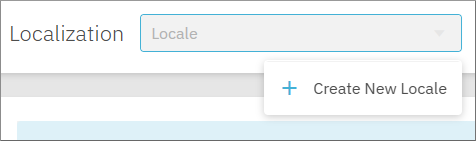
In the localization dropdown list at the top of the page, click Create New Locale.
-
Enter the target language and country, and then click Save.
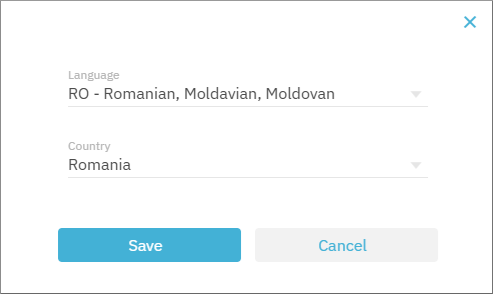
updateLocale and deleteLocale mutations of the Localization service.
Manage labels
After adding at least one locale, the next step is to define all the labels of your application that need localization.
To add a label:
- Click New Label in the upper-right area of the page.
- Fill in the Code, Text, and Description, and then click Save.
| Field | Description |
|---|---|
| Code | Mandatory. The unique identifier of the label. |
| Text | Mandatory. The text of the label as it appears in the original language of your application. This is the actual value that will be localized. |
| Description | Optional. A description of the label where you can provide more information about the context where it is used. |
To delete labels, click Delete  next to the respective record in the grid.
updateLabel mutation of the Localization service.
Add translations
Once you have added all required labels and at least one locale, you can start adding the actual translations for each label.
To add a translation for a particular label:
-
Click the respective record in the grid.
-
Select the required locale (the one into which you are localizing) from the Locales dropdown list at the top of the page. Keep in mind that the changes you make in the next steps will affect this locale only.
-
Enter the translated value in the Translation text box of the lower pane, and then click Save.
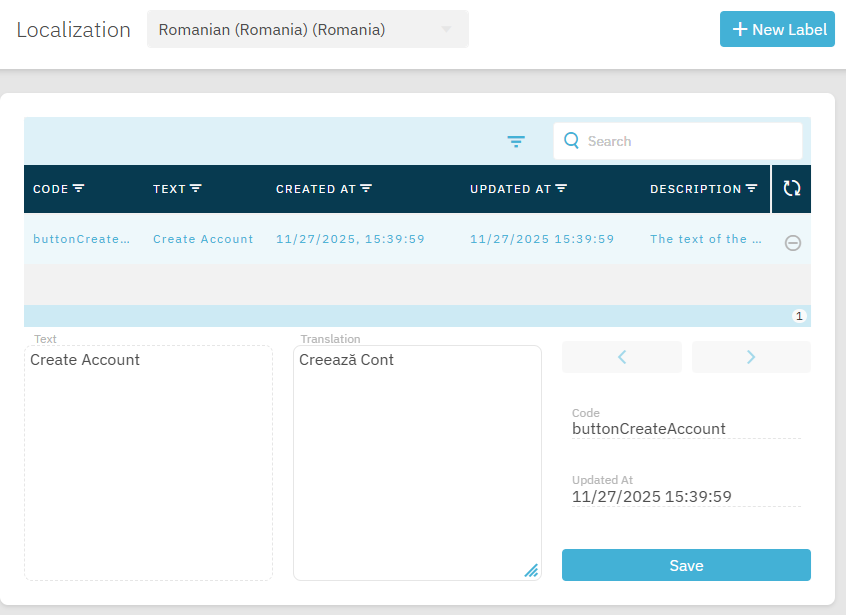
To easily select labels and add their respective translations, click the arrow buttons. Note that the arrow buttons are enabled only if the grid contains more than one label.